Friday, September 23, 2011

Tut - Emo Girl


 Emo Girl

This tutorial is my own creation and based on my own ideas. Any and all similarities with any other tutorial is purely coincidental.
Please do not upload to or offer this tutorial on any other site without asking me first. Thank you.
Material you will need:

PaintShopPro – I’m using PSP X2, but you should be able to follow the tutorial in any version.
A scrap kit – I used the fabulous kit Emo Girl by Rebellious Scraps, which you can purchase here.
A font of your choice.
A tube of your choice.
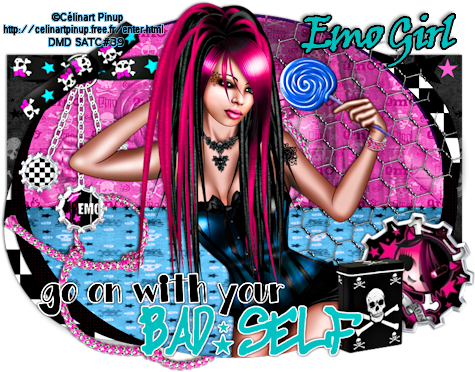
1 tag template – I used template Bad Self, created by Crazy Cakes Scraps. You can find it here on her blog.
Plugins – Penta.com (Color Dot) & Krusty’s FX Vol III (Grid Mover).

Now, let’s get started. It might be helpful if you choose the elements you wish to use beforehand, and open them up in PSP prior to starting the tutorial. That way, you have them handy when following each step.
Also, you don’t have to slavishly follow each positioning nor setting – play and experiment a bit, especially if you use different elements.
If you are unsure how to position an element, refer back to my sample tag.
I do assume you have at least some to moderate experience and understanding of PSP.
The DropShadow throughout the tutorial remains the same: V/H -1/-2 O/B 44/3.99.
Resizing throughout the tutorial is done with “Resize all Layers” NOT checked.

Choose a color (or paper) for layer 7, flood fill layer.
Repeat for layers 6 and 5.
Choose the same color for layers 4 and 3, flood fill, merge layers 4 and 3.
Write down the RGB value of a color from your tube.
Plugins – penta.com – color dot:
Value: 72
Distance: 5
For the next 3 fields, enter the RGB value you wrote down, click “Ok”.
Choose colors (or paper) for layers 2. 1 and starline.
C/p your tube, resize and position to liking on the layer 2 you just filled.
Selections – Float/Defloat, Invert, on tube layer hit “delete”, Deselect.
Still on tube layer, layer mode – Luminance.
Close all other layers but tube and layer 2, merge visible.
Plugins – Krusty’s FX Vol III – Grid Mover, standard settings (or adjust to liking).
Add your tube and any additional elements as desired.
Apply Dropshadow as desired.

Then, it is time to add any further text, copyright information and watermark to the graphic.

Feel free to merge all layers visible and then resize to your liking or crop the image.
If you prefer a transparent background, save your tag in PNG format.
Otherwise, if you select the JPG, it will automatically add a white background.
Should you care for a different colored background:
New layer, arrange, send to bottom, and floodfill with your color of choice.

I hope you enjoyed this tutorial!

XOXOXO,
Dani

Thursday, September 22, 2011

Tut - Finding Neverland


Finding Neverland


This tutorial is my own creation and based on my own ideas. Any and all similarities with any other tutorial is purely coincidental.
Please do not upload to or offer this tutorial on any other site without asking me first. Thank you.
Material you will need:

PaintShopPro – I’m using PSP X2, but you should be able to follow the tutorial in any version.
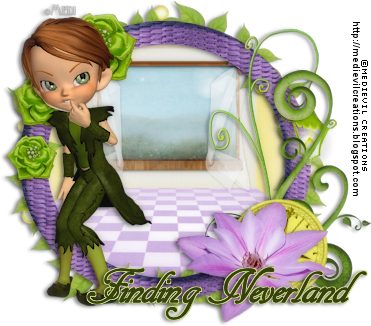
A scrap kit – I used the beautiful kit Finding Neverland by Sleek N Sassy Designz , which you can purchase here.
A font of your choice.
A tube of your choice.
Filter/Plugin: Xero - Porcelain.

Now, let’s get started. It might be helpful if you choose the elements you wish to use beforehand, and open them up in PSP prior to starting the tutorial. That way, you have them handy when following each step.
Also, you don’t have to slavishly follow each positioning nor setting – play and experiment a bit, especially if you use different elements.
If you are unsure how to position an element, refer back to my sample tag.
I do assume you have at least some to moderate experience and understanding of PSP.
The DropShadow throughout the tutorial remains the same: V/H 1/-3 O/B 45/5.15.
Resizing throughout the tutorial is done with “Resize all Layers” NOT checked.

Open new image 600 x 600.
Open FN_Element20, c/p, resize 50%.
Open FN_Element28, c/p, resize 50%.
Open FN_Paper11, copy.
Magic Wand, click inside frame, Selections – Expand 2.
New layer, underneath weave frame, Paste into Selection, Deselect.
Open FN_Element30, c/p, resize 40%, lower right side.
Open FN_Element22, c/p, resize 35%, lower right side.
Open FN_Element57, c/p, resize 25%, Free Rotate – Right – 18, lower right side.
Open FN_Element29, c/p, resize 35%, lower right side.
Open FN_Element53, c/p, resize 20%, duplicate twice.
First copy, resize 85%, Mirror.
Second copy, resize 65%.
Position all three green roses along frame, upper left.
Add any additional elements as desired.
Add tube, resize and position to liking.
Apply Dropshadow as desired.
Merge visible, so be sure that everything is in place as you like it to be on your finished tag.
Plugins – Xero – Porcelain:
Softness: 50
Strength: 75
Brightness: 128
Red channel: 0
Green channel: 0
Blue channel: 0

Then, it is time to add any further text, copyright information and watermark to the graphic.

Feel free to merge all layers visible and then resize to your liking or crop the image.
If you prefer a transparent background, save your tag in PNG format.
Otherwise, if you select the JPG, it will automatically add a white background.
Should you care for a different colored background:
New layer, arrange, send to bottom, and floodfill with your color of choice.

I hope you enjoyed this tutorial!

XOXOXO,
Dani
Wednesday, September 14, 2011

Tut - It's A Emo Party


It’s A Emo Party

This tutorial is my own creation and based on my own ideas. Any and all similarities with any other tutorial is purely coincidental.
Please do not upload to or offer this tutorial on any other site without asking me first. Thank you.
Material you will need:

PaintShopPro – I’m using PSP X2, but you should be able to follow the tutorial in any version.
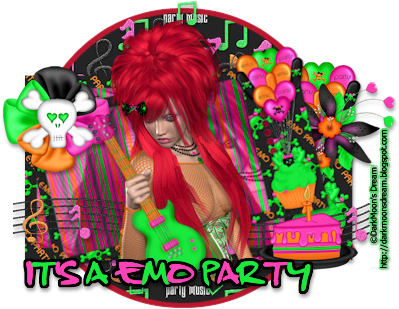
A scrap kit – I used the fabulous kit It’s A Emo Party by Crystals Creations , which you can purchase here.
A font of your choice.
A tube of your choice.
No filters required.

Now, let’s get started. It might be helpful if you choose the elements you wish to use beforehand, and open them up in PSP prior to starting the tutorial. That way, you have them handy when following each step.
Also, you don’t have to slavishly follow each positioning nor setting – play and experiment a bit, especially if you use different elements.
If you are unsure how to position an element, refer back to my sample tag.
I do assume you have at least some to moderate experience and understanding of PSP.
The DropShadow throughout the tutorial remains the same: V/H 3/1 O/B 37/5.15.
Resizing throughout the tutorial is done with “Resize all Layers” NOT checked.

Open new image, 600 x 600.
Open partypp13, c/p, resize 55%.
Open paper08, copy.
With Magic Wand, click inside frame, Selections – Expand 2.
New layer, paste into selection, Selections – Select none.
Open tube, c/p, resize and position to liking, under frame layer.
Optional: Copy, mirror, change layer mode and opacity.
Merge visible, duplicate, resize copy 85%.
Open partypp6, c/p, resize 50%.
Selection Tool – Circle – draw a circle of your liking.
Selections – Invert, hit “delete”, Invert – Expand 5.
New layer, underneath paper circle, fill with color of choice, Selections – Select none.
Paper circle layer, merge down once, Arrange – Send to Bottom.
Open partee19, c/p, resize 52%.
Open partee30, c/p, resize 35%, move between two frame layers, to the right.
Open partee40, c/p, resize 40%, move towards lower edge, on top of frame layers.
Open partee15, c/p, resize 25%, lower right bottom.
Open partee17, c/p, resize 30%, upper left corner.
Open tube, c/p, resize and position to liking.

Add any further text, copyright information and watermark to the graphic.

Feel free to merge all layers visible and then resize to your liking or crop the image.
If you prefer a transparent background, save your tag in PNG format.
Otherwise, if you select the JPG, it will automatically add a white background.
Should you care for a different colored background:
New layer, arrange, send to bottom, and floodfill with your color of choice.

I hope you enjoyed this tutorial!

XOXOXO,
Dani
Wednesday, September 7, 2011

Tut - S&M


S&M


This tutorial is my own creation and based on my own ideas. Any and all similarities with any other tutorial is purely coincidental.
Please do not upload to or offer this tutorial on any other site without asking me first. Thank you.
Material you will need:

PaintShopPro – I’m using PSP X2, but you should be able to follow the tutorial in any version.
A scrap kit – I used the fabulous kit S&M by Tammy’s Scraps , which you can purchase here.
A font of your choice.
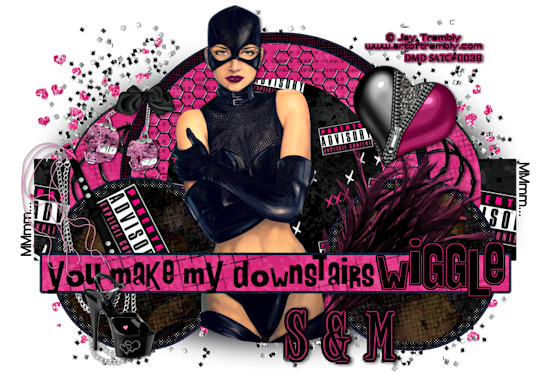
A tube of your choice – I used the awesome tube “The Boss” by Jay Trembly, which you can purchase here.
1 tag template – I used Wiggle Template, created by EyeCandiiGraphicz. You can find it, and many more great tag templates here on her blog.

Now, let’s get started. It might be helpful if you choose the elements you wish to use beforehand, and open them up in PSP prior to starting the tutorial. That way, you have them handy when following each step.
Also, you don’t have to slavishly follow each positioning nor setting – play and experiment a bit, especially if you use different elements.
If you are unsure how to position an element, refer back to my sample tag.
I do assume you have at least some to moderate experience and understanding of PSP.

Open your template, duplicate & close original.
Open your tube, duplicate & close original.
Choose a color from your tube and re-colorize the oval blurry (manual color correction).
Choose a color from your tube and re-colorize the white noisy circles.
Choose a color or paper and fill black rectangle with it.
Choose a color or paper and fill pink circle left back.
Repeat with pink circle right back.
Choose a color from your tube and re-colorize the white noisy circles – large.
Either keep the large black circle – dotted, or choose a color or paper and fill it in.
Choose a color from your tube and re-colorize the white circle – large noisy.
Choose a color or paper and fill the pink circle – large.
Either keep the text: wiggle pixel or fill it with a different color.
Choose a color or paper and fill black center black circle.
Choose a color and re-colorize the white noisy circles – small.
Either keep (or re-colorize) or fill pink polkadot circles with paper or color of choice.
Choose a color or paper and fill black circle – small right.
Open tube, copy & paste, resize and position to liking inside the same circle, change opacity and layer mode.
Repeat with black circle – small left.
Choose a color and re-colorize thin white noisy rectangle.
Choose a color or paper and fill thin pink rectangle.
Keep or fill text: MMmm with color of choice.
Repeat with text: you make my downstairs and text: wiggle.
Add your tube and other desired elements.

Then, it is time to add any further text, copyright information and watermark to the graphic.

Feel free to merge all layers visible and then resize to your liking or crop the image.
If you prefer a transparent background, save your tag in PNG format.
Otherwise, if you select the JPG, it will automatically add a white background.
Should you care for a different colored background:
New layer, arrange, send to bottom, and floodfill with your color of choice.

I hope you enjoyed this tutorial!

XOXOXO,
Dani