Showing posts with label Enchanted Dreams Boutique. Show all posts

Saturday, October 15, 2011

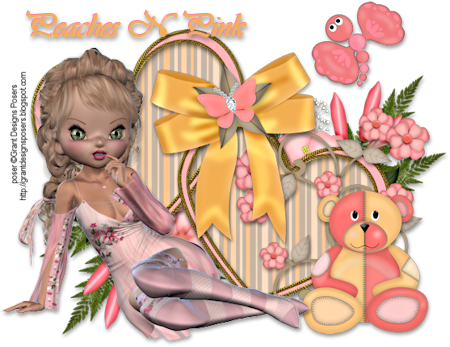
Tut - Peaches N Pink

Peaches N Pink


This tutorial is my own creation and based on my own ideas. Any and all similarities with any other tutorial is purely coincidental.
Please do not upload to or offer this tutorial on any other site without asking me first. Thank you.
Material you will need:

PaintShopPro – I’m using PSP X2, but you should be able to follow the tutorial in any version.
A scrap kit – I used the beautiful kit Peaches N Pink by Grand Designs Posers (this is a full size kit), which you can purchase here.
A font of your choice.
A tube of your choice. I used the beautiful Poser provided with the kit, made by Sarah, aka Grand Designs Posers.
No filters required.

Now, let’s get started. It might be helpful if you choose the elements you wish to use beforehand, and open them up in PSP prior to starting the tutorial. That way, you have them handy when following each step.
Also, you don’t have to slavishly follow each positioning nor setting – play and experiment a bit, especially if you use different elements.
If you are unsure how to position an element, refer back to my sample tag.
I do assume you have at least some to moderate experience and understanding of PSP.
The DropShadow throughout the tutorial remains the same: V/H 3/1 O/B 41/6.55.
Resizing throughout the tutorial is done with “Resize all Layers” NOT checked.

Open new image 600 x 600 px.

Open Hearts.
Resize 25%.

Open Paper10.
Copy.

Magic Wand.
Click inside three frame sections (left / center / right).
Selections – Modify – Expand by 3.

Bottom layer.
(Should be empty, if not
New Layer
Arrange – Send to Bottom).
Paste into Selection.
Keep Selection.

New layer.
Effects – Cutout:
Vertical & Horizontal: 5
Opacity: 15
Blur: 12.33
Shadow Color: Black
No Fill color.
Selections – Select none.

Merge visible.

Open Flower 8.
Copy & paste.
Resize 17%.
Arrange – Send to Bottom.
Position center, top, a little to the right.

Duplicate flower.
Mirror.
Flip.
Position lower left.

On frame layer.

Open Flower 3.
Copy & paste.
Resize 20%.
Lower right.

Open Butterfly bow 2.
Copy & paste.
Resize 20%.
Upper left.

Open Dragon Fly 4.
Copy & paste.
Resize 10 %.
Upper right.

Open Patchwork Teddy.
Copy & paste.
Resize 15%.
Lower right.

Open GDP_Dorothyset1c.
Copy & paste.
Resize 15%.
Lower left.

Apply Dropshadow as desired.

Then, it is time to add any further text, copyright information and watermark to the graphic.

Feel free to merge all layers visible and then resize to your liking or crop the image.
If you prefer a transparent background, save your tag in PNG format.
Otherwise, if you select the JPG, it will automatically add a white background.
Should you care for a different colored background:
New layer, arrange, send to bottom, and floodfill with your color of choice.

I hope you enjoyed this tutorial!

XOXOXO,
Dani

Thursday, October 13, 2011

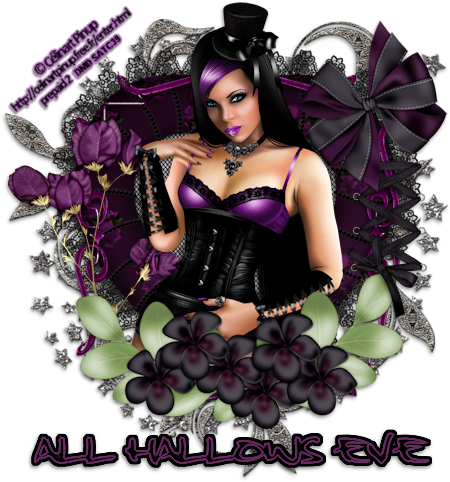
Tut - All Hallow's Eve


All Hallow’s Eve


This tutorial is my own creation and based on my own ideas. Any and all similarities with any other tutorial is purely coincidental.
Please do not upload to or offer this tutorial on any other site without asking me first. Thank you.
Material you will need:

PaintShopPro – I’m using PSP X2, but you should be able to follow the tutorial in any version.
A scrap kit – I used the fabulous kit All Hallow’s Eve by JTsDesigns, which you can purchase at Enchanted Dreams Boutique.
A font of your choice.
A tube of your choice. I used a commission tube by Célinart Pinup. You can find her tubes at Scraps And The City.
No filters required.

Now, let’s get started. It might be helpful if you choose the elements you wish to use beforehand, and open them up in PSP prior to starting the tutorial. That way, you have them handy when following each step.
Also, you don’t have to slavishly follow each positioning nor setting – play and experiment a bit, especially if you use different elements.
If you are unsure how to position an element, refer back to my sample tag.
I do assume you have at least some to moderate experience and understanding of PSP.
The Drop Shadow throughout the tutorial remains the same: V/H 2/-1 O/B 44/5.44.
Resizing throughout the tutorial is done with “Resize all Layers” NOT checked.

Open new image.
600 x 600, 72 dpi.

Open JTsDesignsAHE_CircleStarzTS.
Copy & paste.
Resize 85%.

Open JTsDesignsAHE_ScrollHeartTS, 85%.
Copy & paste.
Resize 85%.

Open JTsDesignsAHE_Heart1TS.
Copy & paste.
Resize 55%.

Open JTsDesignsAHE_Frame3TS.
Copy & paste.
Resize 65%.

Open JTsDesignsAHE_BougainvilleTS.
Copy & paste.
Resize 35%.
Move to the left.

Open your tube.
Copy & paste.
Resize and position to liking.

Open JTsDesignsAHE_Flowers2TS.
Copy & paste.
Resize 45%.
Move to the bottom.

Open JTsDesignsAHE_Lace2TS.
Copy & paste.
Resize 25%.
Move to the right.

Open JTsDesignsAHE_Bow1TS.
Copy & paste.
Resize 35%.
Move to the top right.

Optional:
You may have to erase some parts of the tube if it’s extending past the flowers.
Move the stars and scroll heart a little bit.

Apply Drop shadow as desired.
Then, it is time to add any further text, copyright information and watermark to the graphic.

Feel free to merge all layers visible and then resize to your liking or crop the image.
If you prefer a transparent background, save your tag in PNG format.
Otherwise, if you select the JPG, it will automatically add a white background.
Should you care for a different colored background:
New layer, arrange, send to bottom, and floodfill with your color of choice.

I hope you enjoyed this tutorial!

XOXOXO,
Dani
Monday, September 26, 2011

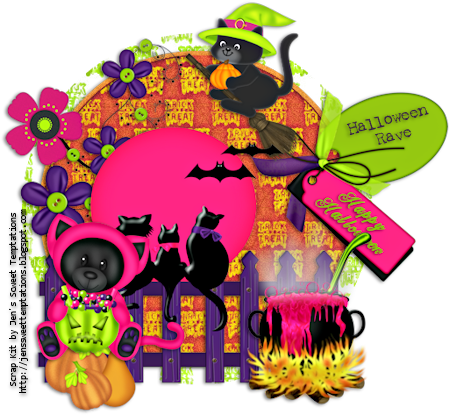
Tut - Halloween Rave


Halloween Rave

  
This tutorial is my own creation and based on my own ideas. Any and all similarities with any other tutorial is purely coincidental.
Please do not upload to or offer this tutorial on any other site without asking me first. Thank you.
Material you will need:

PaintShopPro – I’m using PSP X2, but you should be able to follow the tutorial in any version.
A scrap kit – I used the awesome kit Halloween Rave by Jen’s Sweet Temptations, which you can purchase here.
A font of your choice.
1 mask –I used AS_Halloween mask4 which you can find on the Creative Misfits Creations blog here.
Plugins – Xero - Pastellise.

Now, let’s get started. It might be helpful if you choose the elements you wish to use beforehand, and open them up in PSP prior to starting the tutorial. That way, you have them handy when following each step.
Also, you don’t have to slavishly follow each positioning nor setting – play and experiment a bit, especially if you use different elements.
If you are unsure how to position an element, refer back to my sample tag.
I do assume you have at least some to moderate experience and understanding of PSP.
The Drop Shadow throughout the tutorial remains the same: V/H 1/-2 O/B 50/5.35.
Resizing throughout the tutorial is done with “Resize all Layers” NOT checked.

Open new image, 600 x 600 px.

Open Paper9, copy.
Selection Tool – Circle.
Start in the center of your canvas and draw a circle about 400 in size.
Paste into Selection.
Selections – Select none.
Layers – Load/Save Mask – Load Mask from Disk – AS_Halloween mask4, Merge Group
Optional: resize mask or use your Deformation Tool, if necessary, to tweak your mask layers to your liking and/or lower the opacity.

New layer.
Open Paper6, copy.
Selection Tool – Circle.
Start in canvas center and draw a circle about 350 in size.
Paste into Selections.
Keep selection.

Selections – Expand 2.
Pick a color of choice.
New layer, underneath last paper layer.
Fill with color.
Add/Remove Noise – Add Noise – Uniform, 10, Monochrome checked.
Selections – Select none.

Duplicate mask layer.
Arrange – Bring to Top.
Resize 87%.

On second mask layer.
Merge down once.
Duplicate merged layer.

On bottom copy of merged layer.
Selections – Float/Defloat.
Plugins – Xero – Pastellise.
Selections – Select none.
Layer Mode – Multiply.
Layer Opacity – 55%.

On top copy of merged layer.
Layer Mode – Overly.
Layer Opacity – 75%.

Open Flower1.
Copy & paste.
Mirror.
Resize 45% and position to liking.

Open Tag.
Copy & paste.
Resize 45% and position to liking.

Open Cat.
Copy & paste.
Resize 40% and position to liking.

Open Moonlights.
Copy & paste.
Resize 70% and position to liking.

Open Bear.
Copy & paste.
Resize 40% and position to liking.

Open Cauldron.
Copy & paste,
Resize 45% and position to liking.

Apply Dropshadow as desired.

Then, it is time to add any further text, copyright information and watermark to the graphic.

Feel free to merge all layers visible and then resize to your liking or crop the image.
If you prefer a transparent background, save your tag in PNG format.
Otherwise, if you select the JPG, it will automatically add a white background.
Should you care for a different colored background:
New layer, arrange, send to bottom, and floodfill with your color of choice.

I hope you enjoyed this tutorial!

XOXOXO,
Dani